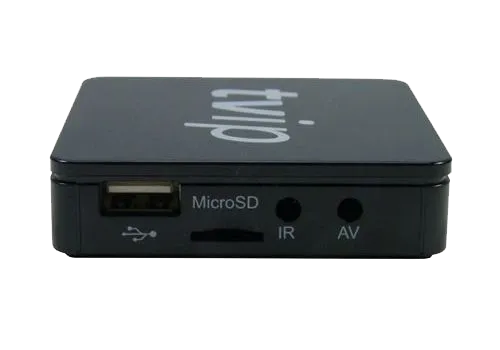
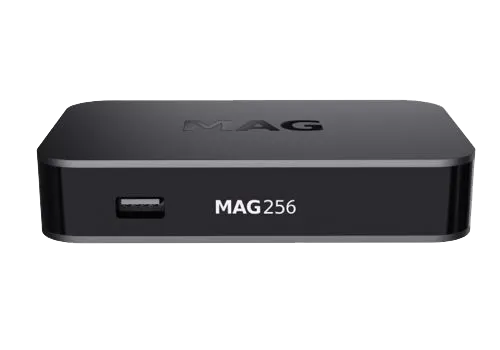
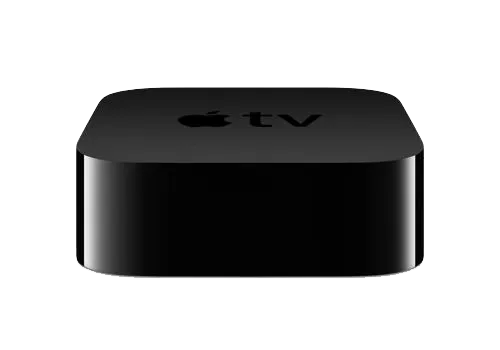
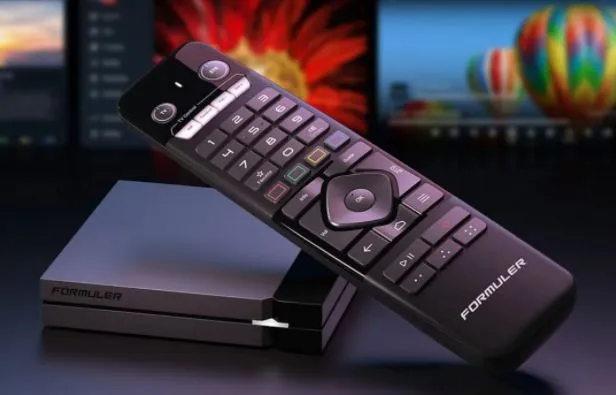
We support all kind of devices such as: MAG, Android Smart Phone, Android Boxes, Enigma, DreamBox, Vu+ , PC, VLC, Kodi/XBMC , Smart TV.
We always recommend that you connect your device hardware (ethernet).
Yes, We offer a reseller plan at the best price.Contact us to learn more
Yes, We offer a reseller plan at the best price.Contact us to learn more
30 days Premium IPTV
€107.99 Total
365 days Premium IPTV
35.99€ Total
90 days Premium IPTV
1. Plug everything in and start the box
2. Select the language and time zone and complete the update of the box to the latest software
3. The box restarts after the update
4. Go to Settings and then to Network
5. Write down the MAC Address (Please check that it is the same on the box of your box)
6. Go to TV in the left menu and change all settings so that it looks like this:
Stream Source: Multicast
UDPXY Server:
MPEG-TS Buffering, msec: 5000
DVR Storage: No storage
Timeshift storage: Internal storage
Auto-timeshifting: Off
Content Source: Web Portal
Below Content Source: Web Portal is a button that says Setup Web portal. Push it
and set the following settings:
Portal URL: Obtained upon purchase
Portal Manager: Off
Use Web portal: Whole System
API Mode: GSTB
Then press Apply.
ATTENTION! Some newer TVs have difficulty synchronizing the refresh rate (Hertz/FPS) with the box and then you can get a so-called FPS LAGG. You solve this by going to Settings – Display and setting HDMI Auto Framerate to ON
If you bought a subscription, you send us the MAC address.
About Programming the remote control
1. Press the Gear at the top left and click down after Multiscreen, then Bluetooth remote will click on it and follow the instructions below.
2. Hold down the INFO and EPG keys on the remote control at the same time for 5 seconds until the LED starts flashing
3. Wait for the text Remote control is now connected over bluetooth to appear, then you can press the text Continue.
Program the box’s remote so that you can turn the TV on and off with it.
1. Press the “SET” button on the remote control and hold it for 2 seconds until the red LED lights up. Now the remote control is ready to be programmed.
2. Press any button from the group “TV CONTROL” which is at the top and has the following within the group SET, TV IN, VOL- , VOL+ if you want to program, for example on/off, and the red LED starts flashing. Place the TV remote control and the remote control of the box towards each other at a distance of 1 cm, hold the button for 2 seconds on the remote control of the TV, which you want to teach your box remote.
After three quick flashes and when the red LED lights up constantly, the programming of the remote control’s buttons on the box’s remote is complete.
(Repeat these programming steps for all required buttons.)
To complete the programming process and save new settings for the remote control on the box’s remote, press the “SET” button. The red LED should turn off. The remote control is ready to use.
Search movies and series.
If you want to search for films or series more easily, you can search (Find) BLUE function button
Go to e.g. movies (VIDEOCLUB) in the menu
Select ALL, then all movies will be displayed in a list.
Press BLUE button then you get a choice Seach, press OK, a keyboard appears. Write part of, for example, a movie title, after three entries a search result will appear, the more entries, the shorter the search result. To go to the search result press “House”.
Favorites.
Select a series (film) with the YELLOW function button, then it will be marked with a star. Cleared with the same button, YELLOW.
To see the favorite list, press the GREEN button and select FAVOITE ONLY.
Factory reset the box
To factory reset the box:
Press in the following order the button located at the top at the top of the remote control
S-Info 49 S-Info
Confirm factory reset
ATTENTION!!!
Some newer TVs have difficulty synchronizing the refresh rate (Hertz/FPS) with the box and then you can get a so-called FPS LAGG.
You solve this by going to Settings – Display and setting HDMI Auto Framerate to ON
If you applied for a trial account, you must activate your MAC address which is on the bottom of the box
If you bought a subscription, you email us the MAC address.
Please write this in the order.
REMOTE CONTROL SHORTCUTS:
Inside a channel:
Magnifier: Can change language/subtitle (if available in the channel) or enable 3D
MENU: Press Aspect Ratio to change aspect ratio eg 4:3, 16:9 etc
Gear: Opens TVIP System Settings
The button at the bottom left: Can also change the Aspect ratio in a channel.
REMOTE CONTROL SHORTCUTS:
Inside a channel:
Magnifier: Can change language/subtitle (if available in the channel) or enable 3D
MENU: Press Aspect Ratio to change aspect ratio eg 4:3, 16:9 etc
Gear: Opens TVIP System Settings
The button at the bottom left: Can also change the Aspect ratio in a channel.
1. Go to Settings then System Settings
2. Go down to Software Update, Press OK then the Red button to update the software. Wait a few minutes and the box will restart.
3. Go to Settings then System Settings.
4. Go to Video and change to 1080p and 1920×1080 Press OK and go back (SKIP THIS STEP FOR MAG256 AS IT DETECTS ITSELF)
5. Go to Servers
6. Go to General and enter pool.ntp.org press OK and go back
7. Tap Portals
8. On the First portal, enter this
Portal Name: Flash IPTV
Portal URL: (The portal address is provided via mail)
You do not need to fill in anything for the other Portals. Press OK to save and go back.
9. Go to Advanced Settings and change the time zone to Europe/Stockholm to make the EPG work. Press OK to save
Now go back until you get out, the box will say it needs to reboot to use the new settings. Let it reboot.
Before you start watching TV, do one last thing. Go Right until you get to Settings, then Advanced Settings and change the Buffer Size from 0 to 15, go down the list and press OK.
Now you can start watching TV.
ATTENTION! Works only with Apple TV 4 and 4k.
Info about the app: costs approximately 3 eu, there is no demo version.
For: Xtream Server
1. Download and install iPlayTV from the app store directly in your Apple TV.
2. Create a new playlist and select “Xtream Server” name the playlist any name it is recommended to name it “Flash IPTV”
3. Then type/copy in the server urln: which is at the beginning of your m3u link (Only what is marked in purple):
http://xxxxxxxx.xx:8080/get.php?username=xxxxxxxxx..
4. Enter/copy your username and password that you received from us in the email when you purchased the subscription.
6. Choose how often you want the epgn and the channels to be updated.
For: Remote Playlist File
1. Download and install iPlayTV from the app store directly in your Apple TV.
2. Create a new playlist and select “Remote Playlist File” name the playlist any name it is recommended to be named
“Flash IPTV”
3. Type/copy the m3u link that you received from us in the email when you bought the subscription.
4. Type/copy the EPG url you receive from us.
Do this:
1. Install TiviMate from Google Play.
2. Open TiviMate and click “Add Playlist”
3. Select Xtream Codes Login
5. Fill in Server address, username and password
6. Check “Include VOD”
Now you are done!
ATTENTION! Username and password are send automaticly after you purchase!!
1. Go to your TV’s App Store (Samsung apps/LG Content store)
2. Search for the IBO PLAYER app
3: Start the app and note your mac address and your device key.
4. Go to this page https://iboiptv.com/device/login
5. Fill in your Device ID and Device Key, press login
6. + add xc playlist (Xtream codes)
Playlist name Flash IPTV
User name (found in your order)
Password (found in your order)
Host = server url (send via mail when you purchase)
Press SAVE
7. Restart IBO PLAYER and now the playlist should be downloaded
Keep in mind that IBO PLAYER is a paid program that costs €6
It is free for 7 days and when your trial period is over, you have to buy the program.
You do that here https://iboiptv.com/device/login
Select Activate
IPHONE
GSE IPTV APP
Press the menu button to access Xtream Codes
Press +
Any Name= Flash IPTV
Server Name= http://xxxx.xx:8080
Username: Found in your order
Password: Found in your order
Press log in
Look for the one called Flash IPTV and tap it.
Then press LIVE
Then select country and channel
ATTENTION! You will find your username and password in your confirmation email after purchase.
ANDROID
Download Smarters Player Lite from Play/App Store or via their website: https://www.iptvsmarters.com/#downloads
1: Install and launch the program
2. Select Xtream Codes
3: Any name: Flash IPTV
4: Username (found in the email from your purchase)
5: Password (found in the email from your purchase)
6: “http” – Portal (found in the email from your purchase)
1: Download the Bay IPTV app on your TV.
2: Launch the app and note down your MAC.
3: Go to https://cms.bayip.tv/
4: Fill in the MAC, Name it something appropriate, Paste your m3u and press Enter.
5: Restart your app
Keep in mind that the app is only free for 7 days then you have to buy the app via https://cms.bayip.tv/packages
Info about the app: costs approximately 5.5 eu, you get a 7-day demo version.
Visit www.netiptv.eu/upload.
Enter your Smart TV MAC address. You can see the Mac address in the Net IPTV app

3. Then enter the M3U link (which you received via email from us) and press Add list.

4. Wait a short while, and then restart your Smart TV.
5. Restart your Net IPTV app.
6. Now there are channels on the channel list on the Net IPTV app.
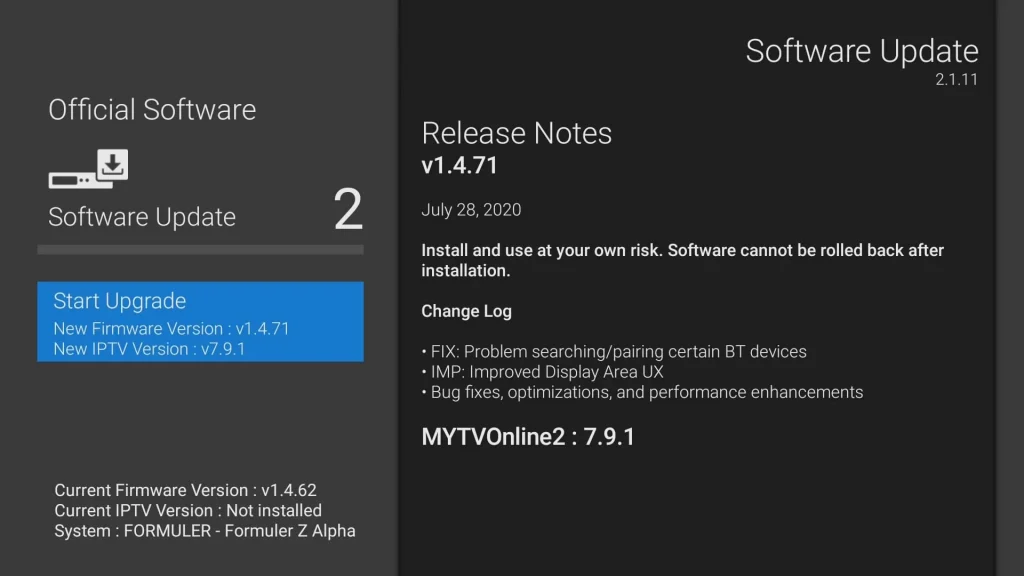
This instruction applies to Formuler Z8, Z10 Pro and Formuler Alpha.
Step 1:
When you get the box home, start by plugging in all the included cables and use an internet cable if you have poor Wi-Fi.
Now you start the box and select your settings such as language, region, time, etc.
After that is done, your formula should be updated.
Step 2:
1. Go to the Market and download the Audio Optimizer app and run it once.

Step 3:
1. Add portal
2. In Portal Nickname, write: Flash IPTV
3. Portal URL: Issued upon request or when purchasing a subscription. Enter URL without /C
4. When you have filled in the link on the PORTAL URL, you fill in the username and password, to bring up that option, you tick “Login Required”
5. Now click connect and if you have done everything correctly, the portal will start up


Step 4:
1. When the portal has read everything, press the menu button on the box
2. Here you see the Live TV, VOD and TV Series categories
3. Scroll down to settings and select the default language for audio and subtitles.
4. Now you can click back and watch TV
5. Click OK to bring up the channel list
6. If you click OK on a channel, it will appear in a window and if you click OK again, you will get full screen
Just like that, you were done!
Here you can see some useful videos from Formuler,
https://www.youtube.com/c/FORMULER_official/videos
Step 1:
When you get the box home, start by plugging in all the included cables and use an internet cable if you have poor Wi-Fi.
Now you start up the box and let it install everything.
But you’re not quite done yet!
Now go up to the gear in the upper right corner
Then go to update and install the latest firmware, etc

Step 2:
Select EDIT PORTAL.
1. IMPORTANT TO SEND THE CORRECT ID NUMBER *Mac address* which you can find inside the edit portal. SEE IMAGE TO THE RIGHT
2. In Portal Nickname, write: Flash IPTV
3. Portal URL: Issued upon request or when purchasing a subscription
4. When you have filled in the link on the PORTAL URL, press the BACK button on your remote control
5. You should not check Login Required
6. If you have done everything correctly now, the portal will start up
7. If it doesn’t start, you should check if you sent the correct ID number and wrote off the portal correctly that we sent you!

Step 3:
1. When the portal has read everything, press the menu button on the box
2. Now go to settings
3. Go down and change the Buffer Time to 3 Sec.
4. Scroll down until you find Epg Mode change it to Normal
5. If the Channel List Style is not set to Classic, we think you should change it to that, as the layout will be much better and it is simpler and smoother
6. Now that you have changed all this, go out and start a channel
7. The box will ask if you want to download audio files and you should do that
8. Once installed the sound will disappear on some channels BUT do a reboot and the sound is back
9. To add text on certain channels, etc., PRESS THE RED BUTTON, then a small pop up will appear on the top left of the TV
Just like that, you were done!
Keep in mind that when you upload according to these instructions, it is easiest to do it from a computer, otherwise there is support that will be happy to help you.
1. Go to your TV’s App Store
2. Search for the program SET IPTV
3. When you have downloaded the SET IPTV program, start it, there you will get something called MAC ADDRESS, it can e.g. look like this A5:44:6F:X3:33:76
4. Copy the MAC Address or write it down.
5. Go to https://cms.manage-setiptv.com/paneliptv/set.app and fill in your MAC address in the upper field, click “Playlist link” and insert the m3u link we sent you after your purchase and click “Send”
6. Restart your TV now and it should work.
Keep in mind that SET IPTV is a paid program that costs about 15 eu. It is free for 7 days and when your trial period is over, you have to buy the program.
Download IPTV smarters from: https://www.iptvsmarters.com/#downloads
1: Install and launch the program
2: Any name: Flash IPTV
3: Username (found in the email from your purchase)
4: Password (found in the email from your purchase)
5: “http” – Portal (found in the email from your purchase)
1- Download and install Putty
2- Open Putty
3- Typing host name : local ip address for box
4- Connection type setting : Telnet
5- Enter
6- Username and password entered ( user and pass : root )
7- Copy the command, m3u line we send you by email: wget -O /etc/enigma2/iptv.sh “http://ourdns:port/get.php?username=XXX&password=XXX&type=enigma22_script&output=mpegts” && chmod 777 /etc/enigma2/iptv.sh && /etc/enigma2/iptv.sh
8- Paste it in Putty ssh
9- Enter / Wait for it to be installed
10- Restart the receiver
11- Go to your box “Favorites” and you should have a new bouquet.
Video Tutorial:
https://www.youtube.com/watch?v=fcu0Se0I9QA
 BannerText_Seraphinite Accelerator